Callista Googleslide Template: A Practical Tool for Streamlined Brand Presentations
Presentations are often the final bridge between an idea and a decision. Whether you are pitching a product line to buyers, walking a client through a brand concept, or compiling a seasonal lookbook, the quality of your slides directly affects how your content is received. The Callista Googleslide Template is a purpose-built resource designed to reduce the friction between your raw content and a polished, professional deck. It moves beyond simple aesthetics, offering a workflow-oriented structure that fits into the practical realities of content creation, marketing, and business communication.
Where Callista Fits in a Real Workflow
Most presentation projects follow a predictable arc: gathering assets, structuring the narrative, designing slides, and then refining for consistency. The Callista template addresses the middle and late stages of this process. It eliminates the need to start from a blank canvas or to manually align elements across dozens of slides. Because it is built with Google Slides and uses the Slide Master feature, you can drag and drop your images directly into predefined layouts without disrupting the underlying design system. This means you spend less time adjusting margins and more time on message clarity and visual impact.
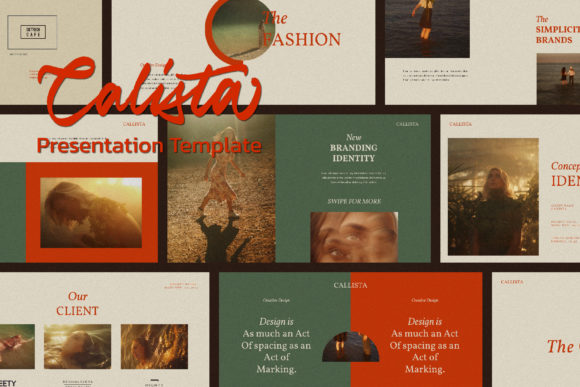
This template is not a one-size-fits-all solution for every presentation need. It is specifically calibrated for product-focused work, catalogues, lookbooks, and brand storytelling. If your work involves showcasing physical products, lifestyle imagery, or curated collections, Callista gives you a framework that already accounts for typography hierarchy, image placement, and color consistency. The automatic color change feature tied to a unique theme palette further simplifies brand alignment, letting you switch between color schemes without manually updating each slide.
Before the Presentation: Preparation and Asset Organization
Effective use of any template begins before you open Google Slides. With Callista, the preparation phase centers on curating your images and copy. The template is designed for high-resolution visuals at 1920×1080 pixels Full HD, so your source images should match or exceed that resolution to maintain crisp output. Organize your media into folders by slide sequence or category before you start dragging them into the layouts. This upfront organization prevents the common workflow breakdown where you pause mid-design to search for a file or resize a photo.
Since the template includes device mockup icon sets, you can also plan which product shots will be displayed on screens or devices. Decide early whether you want to show an app interface, a website screenshot, or a product in hand, and prepare those assets with transparent backgrounds or clear focal points. The free fonts linked in the help instruction PDF should be downloaded and installed before you begin. This avoids missing font warnings and ensures the typography renders as intended from the first slide.
During Creation: Integration with Google Slides and Other Tools
The Callista template works natively within Google Slides, which means it integrates seamlessly with your existing Google Workspace workflows. You can pull content from Google Docs directly into slide text boxes, embed Google Sheets data into charts or tables, and collaborate with team members in real time. This is particularly useful for small business owners or marketing teams who need multiple stakeholders to review a lookbook or product catalogue without emailing large files back and forth.
Because the template is fully editable, you can adapt it to work alongside other design tools. For example, you might use Photoshop or Canva to prepare custom graphics, then import them as images into the predefined picture placeholders. The magazine-style layout options are especially accommodating for editorial-style content, where text wraps around images or runs in columns. If you are a blogger or publisher compiling a digital edition, you can copy your long-form copy directly into the text boxes and adjust the spacing using the existing grid.
The Slide Master structure means that any global changes, such as font size or background color, propagate across all slides instantly. This is a significant time saver during the revision phase. Instead of adjusting each slide individually, you modify the master slide, and the entire deck updates. The unique theme color feature also allows you to create multiple color variations of the same deck for different client presentations or product lines without rebuilding the layout.
Practical Use Cases Across Different Roles
Different professionals will approach Callista from distinct angles, but the template supports a consistent outcome: a polished presentation with minimal friction.
Product Event Presentations
For a product launch event, the flow often moves from problem statement to solution to product details. Callista’s varied layouts let you open with a full-bleed hero image, transition to a two-column product feature spread, and close with a call-to-action slide that includes a device mockup. The automatic color change feature allows you to match the deck to event branding or seasonal color trends without manual adjustments. Presenters can focus on their talking points, knowing the visual narrative is cohesive and professional.
Lookbooks and Catalogues
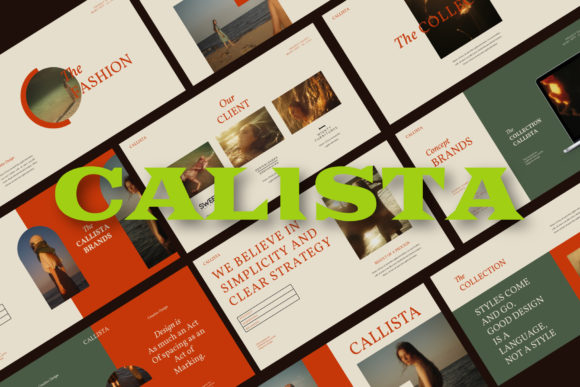
Fashion and lifestyle brands often need lookbooks that function as both presentation tools and leave-behind documents. Callista’s magazine-style layout is ideal here. You can group product shots by collection, use pull quotes or descriptive text, and maintain a consistent grid that feels editorial rather than corporate. The high-resolution output ensures that if you export to PDF for printing or digital distribution, the images retain their quality. For ladypreneurs or girlboss founders running solo operations, the drag-and-drop functionality reduces the need for a dedicated designer, letting you produce professional-grade materials independently.
Marketing and Sales Decks
When presenting to potential clients or investors, consistency and professionalism are non-negotiable. The Callista template’s uniform color scheme, typography, and layout variations create a visual language that signals attention to detail. You can use the lookbook layouts to showcase case studies or before-and-after results, while the product-focused slides highlight your offerings in a structured way. The device mockup icons add a modern touch when demonstrating digital products or app interfaces, making the deck feel current without requiring custom vector work.
Implementation Tips for Smooth Integration
Getting the most out of Callista requires a few deliberate choices during setup and use.
- Establish your color palette first. Before adding any content, decide on your primary theme color. The automatic color change feature works best when you commit to one or two accent colors and then let the template propagate them. This is especially useful for maintaining brand consistency across multiple presentations over time.
- Use the help instruction PDF. The included PDF lists the free fonts and their download links. Install these fonts on your system before opening the template in Google Slides. If you skip this step, Google Slides will substitute fonts, which can alter spacing and degrade the intended design.
- Work incrementally. Start with the slide structure that matches your narrative. Add images first, then text. This sequence prevents you from reorganizing content after you have already styled it. The Slide Master ensures that images placed into placeholders are automatically cropped and positioned, so you can batch-process large sets of photos quickly.
- Export for distribution. When the presentation is finalized, export as PDF for printing or as images for social media teasers. The Full HD resolution supports both print and digital output. If you need a lighter file for email, use the Google Slides built-in compression options before exporting.
Usability and Long-Term Use Considerations
A template is only as valuable as its ease of use over multiple projects. Callista’s Slide Master architecture means that once you understand how to modify the master slides, you can reuse the template indefinitely for different clients, seasons, or product lines. The unique theme color feature allows you to create multiple variations of the same deck architecture for different audiences, which is particularly useful for agencies or freelancers managing several brands.
Because it is a Google Slides template, there is no software lock-in. You can access it from any device with an internet connection, collaborate in real time, and maintain version history automatically. This is a practical advantage for teams that work remotely or across different time zones. The template does not require plugins or external editors, so onboarding a new team member or client collaborator is straightforward.
Quality Control and Consistency
One of the overlooked benefits of using a professionally built template like Callista is the built-in quality control. The pre-set margins, typography scales, and image ratios prevent common design errors such as inconsistent spacing, mismatched fonts, or overcrowded slides. When you share the deck with a client or stakeholder, they see a uniform visual experience rather than a collection of slides that feel disconnected. This consistency builds trust and reduces the likelihood of feedback focused on design issues rather than content.
Over the long term, maintaining a library of presentations built on the same template means you can repurpose slides between decks. A product overview slide from one presentation can be copied into another without reformatting. This efficiency compounds over time, making each subsequent presentation faster to assemble than the last.
Final Observations on Practical Execution
The Callista Googleslide Template is not a magic solution that creates content for you. It is a structural tool that removes the obstacles between your raw materials and a finished presentation. For entrepreneurs, marketers, educators, and creators who regularly produce product-focused decks, it offers a repeatable process that prioritizes consistency and speed. The upfront investment of organizing assets, selecting colors, and installing fonts pays off in the hours saved during layout and revision.
If your workflow involves presenting products to buyers, building lookbooks for seasonal campaigns, or pitching brand concepts to stakeholders, Callista gives you a foundation that looks deliberate and professional without requiring deep design skills. It integrates with how you already work in Google Slides, supports collaboration, and adapts to different content types. The result is a presentation process that feels less like a design challenge and more like a straightforward task of assembling well-prepared components into a coherent whole.